
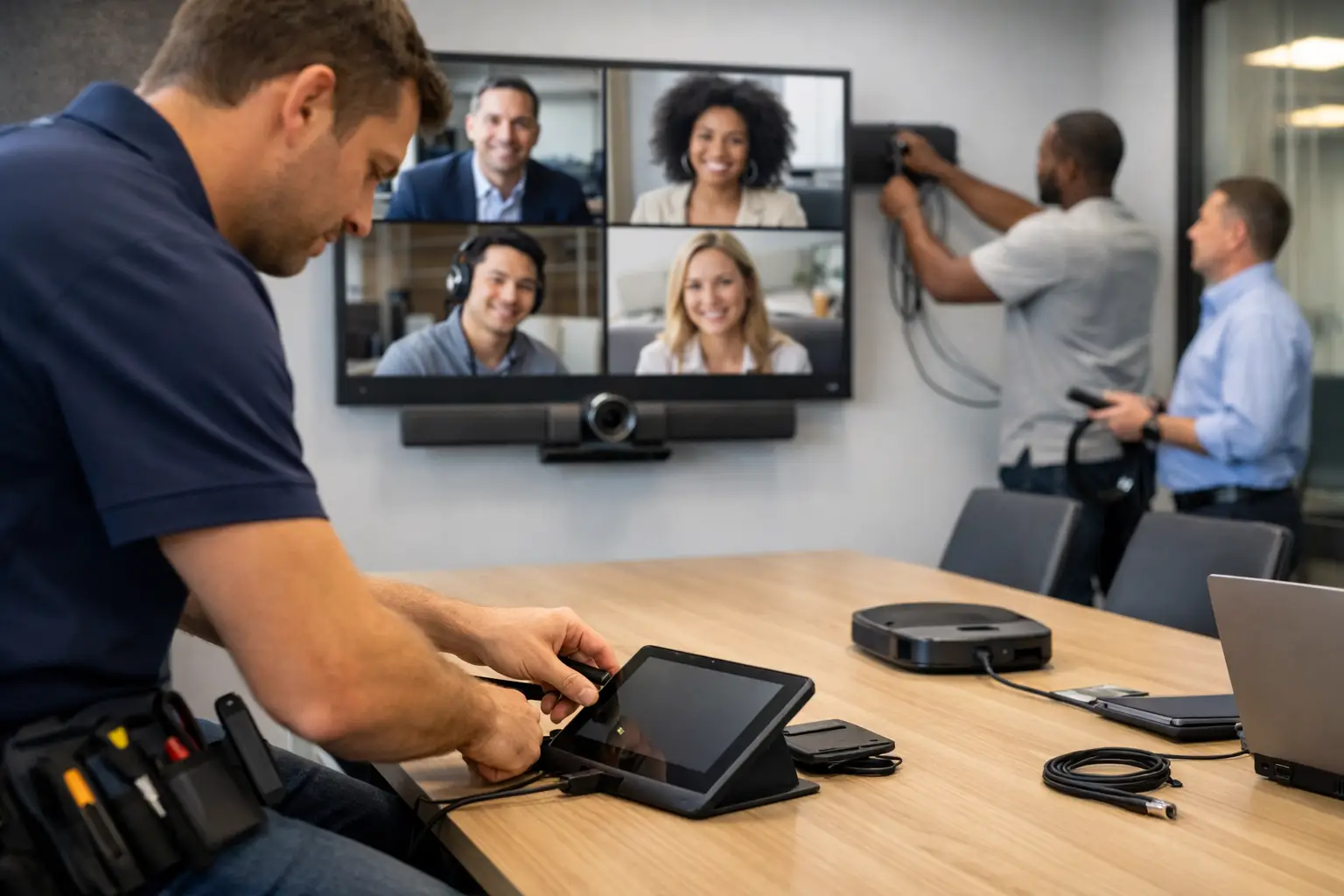
A meeting starts at 9:00. By 9:07, someone is still hunting for the right input, the far-end team cannot hear clearly, and the room booking panel shows the space as free when it plainly is not. Most organisations do not have a meeting problem. They have an installation problem.
That is why Microsoft Teams Rooms installation needs to be treated as a workplace project, not a box-shifting exercise. The hardware matters, but so do room size, sightlines, acoustics, network readiness, cable routes, furniture, user behaviour and support after go-live. Get those details right and Teams Rooms becomes the easiest way to run hybrid meetings. Miss them and even good kit can feel unreliable.
What Microsoft Teams Rooms installation really involves
On paper, a Microsoft Teams Room can look straightforward. A touch console, compute, camera, microphone, speakers and display – job done. In practice, each room has constraints that affect performance and usability.
A small huddle room may need a simple all-in-one bar and single display, but that same approach can struggle in a wider meeting room with glass walls, hard surfaces and six people spread around a table. A boardroom introduces different demands again, from camera framing and table microphones to discreet cable management and a higher expectation around finish. In larger spaces, installation often extends beyond conferencing into room control, wireless presentation, occupancy sensing and integration with room booking.
This is where many projects go off course. Teams Rooms is often viewed as a standard product, when the installation is highly dependent on the environment around it. A well-designed room feels simple because the complexity has been resolved before users walk in.
Start with the room, not the equipment list
The most dependable projects begin with a proper survey. That means looking at the dimensions of the space, table shape, screen positions, power availability, network points, ceiling construction, lighting and the way the room is actually used.
For example, if your meeting rooms regularly include remote participants, the camera position should support natural eye line and clear framing rather than being squeezed into the only available wall space. If the room has poor acoustics, changing microphones alone may not solve the problem. If furniture is fixed, cable paths and touch panel locations need to work around that reality rather than against it.
This early stage is also where organisations decide whether to standardise room types. That can be a smart move, especially across multiple sites, because it simplifies support, training and procurement. But standardisation only works when there is enough flexibility to suit each room’s physical constraints. A cookie-cutter design saves little if users struggle in half the estate.
The key decisions that shape installation quality
Display strategy is one of the first decisions with practical consequences. A single display may suit smaller spaces, while dual displays tend to improve hybrid meetings by separating people from content. The right answer depends on room size, viewing distance and how often content sharing happens.
Audio is usually the make-or-break factor. People forgive a less flattering camera angle more quickly than muffled speech or feedback. In some rooms, a video bar delivers perfectly good pickup. In others, dedicated ceiling or table microphones are the better choice. Open ceilings, reflective surfaces and air handling noise can all influence what will work reliably.
Camera choice also needs more thought than many projects allow. Auto-framing and speaker tracking can improve remote meeting equity, but only if the room layout supports it. In narrow or unusually shaped spaces, the camera with the best specification sheet is not always the one that gives the best result in use.
Then there is control. If users need three remotes and a verbal explanation to start a meeting, the installation has already failed. A Teams Room should present one clear path into the meeting, with any added room controls kept intuitive and relevant.
Why network and infrastructure planning matters
A surprising number of room issues are blamed on the conferencing platform when the real cause sits in the infrastructure. Microsoft Teams Rooms installation should include early checks on network capacity, switching, VLANs, internet resilience and device management policies.
If your IT environment has strict security controls, those need to be considered before the room goes live. Device enrolment, update policies, account configuration and admin access should not be left until commissioning day. The same goes for power and data provision. Last-minute workarounds with extension leads and exposed cabling rarely age well.
Physical installation standards matter too. A meeting room is part technology space, part workplace environment. Displays need to be mounted at usable heights. Cameras should align with participant sightlines. Cabling should be concealed, labelled and serviceable. Rack or under-table equipment should remain accessible for maintenance without creating clutter.
Installation across different room types
Smaller rooms often benefit from speed and consistency. A compact Teams Room setup can be highly effective when the screen is positioned correctly and the microphone pickup matches the space. The temptation is to under-specify these rooms because they look simple. Yet they are often used for quick, high-frequency calls, which makes ease of use even more important.
Medium meeting rooms are where design discipline really pays off. These spaces are common, heavily used and expected to perform for both in-person and hybrid collaboration. This is usually the point where room acoustics, screen size and camera angle start to separate a merely functional installation from one that staff trust.
Boardrooms and executive spaces bring an extra layer of expectation. The technology still needs to be simple, but aesthetics, furniture integration and reliability are under more scrutiny. In these rooms, good installation is partly about technical performance and partly about confidence. Senior stakeholders should not be thinking about cables, adapters or who to call before a client meeting.
Large divisible spaces, training rooms and multi-purpose environments require a more integrated approach. Here, Teams Rooms may need to coexist with presentation systems, distributed audio, additional displays, control interfaces and flexible room modes. That kind of project benefits from careful commissioning and real-world testing rather than a quick fit-out.
Commissioning, training and support are part of the job
Installation is not complete when the screen lights up. Proper commissioning means checking audio pickup, camera framing, device behaviour, content sharing, calendar integration and room controls in conditions that reflect actual use.
User training matters as well, although it should be light-touch if the room is designed properly. Most employees do not want a tutorial on AV systems. They want the room to behave predictably. A short handover for support teams, clear room guidance and a standard user experience across the building usually delivers better results than lengthy documentation.
Ongoing support deserves equal attention. Teams Rooms sits at the intersection of IT, AV and workplace operations, which means faults can easily bounce between departments if ownership is unclear. A single accountable support model reduces that friction. For many organisations, that is where a specialist partner earns their place – not only by delivering the installation, but by helping the estate stay consistent and supportable over time.
Common mistakes in Microsoft Teams Rooms installation
The most common mistake is choosing equipment before understanding the room. Close behind is assuming one design works everywhere. Other issues include poor cable planning, inadequate acoustic consideration, weak network preparation and skipping user acceptance testing.
There is also a tendency to focus on headline features rather than meeting outcomes. A room does not need every advanced function available. It needs to start quickly, sound clear, show content properly and work the same way every time. If a simpler design achieves that more reliably, it is often the better investment.
Budget trade-offs are real, of course. Not every organisation needs premium hardware in every space. But value should be judged over the life of the room, not only at purchase. A cheaper installation that creates helpdesk tickets, failed meetings and low adoption is rarely the economical option.
What good looks like after go-live
A successful Teams Room installation is almost quiet in its impact. Meetings start on time. Remote participants can hear and be heard. Staff move between rooms without relearning the setup. IT teams are not constantly firefighting. Facilities teams are not dealing with untidy retrofit fixes. The technology becomes part of the working day rather than an obstacle to it.
For organisations rolling out multiple spaces, consistency becomes a strategic advantage. Standard room experiences reduce training needs, improve adoption and make future refreshes easier to plan. That is particularly valuable for businesses balancing office attendance, hybrid working and estate efficiency.
The best projects also leave room for growth. Today’s requirement might be straightforward Teams meetings. Tomorrow it could include room analytics, expanded room booking, digital signage or a wider workplace technology programme. A well-planned foundation makes those next steps far easier.
Whether you are fitting out one boardroom or standardising collaboration spaces across several sites, the goal is not simply to install Microsoft Teams Rooms. It is to create meeting environments that people trust – because when the room works properly, the meeting can get on with its real job.