
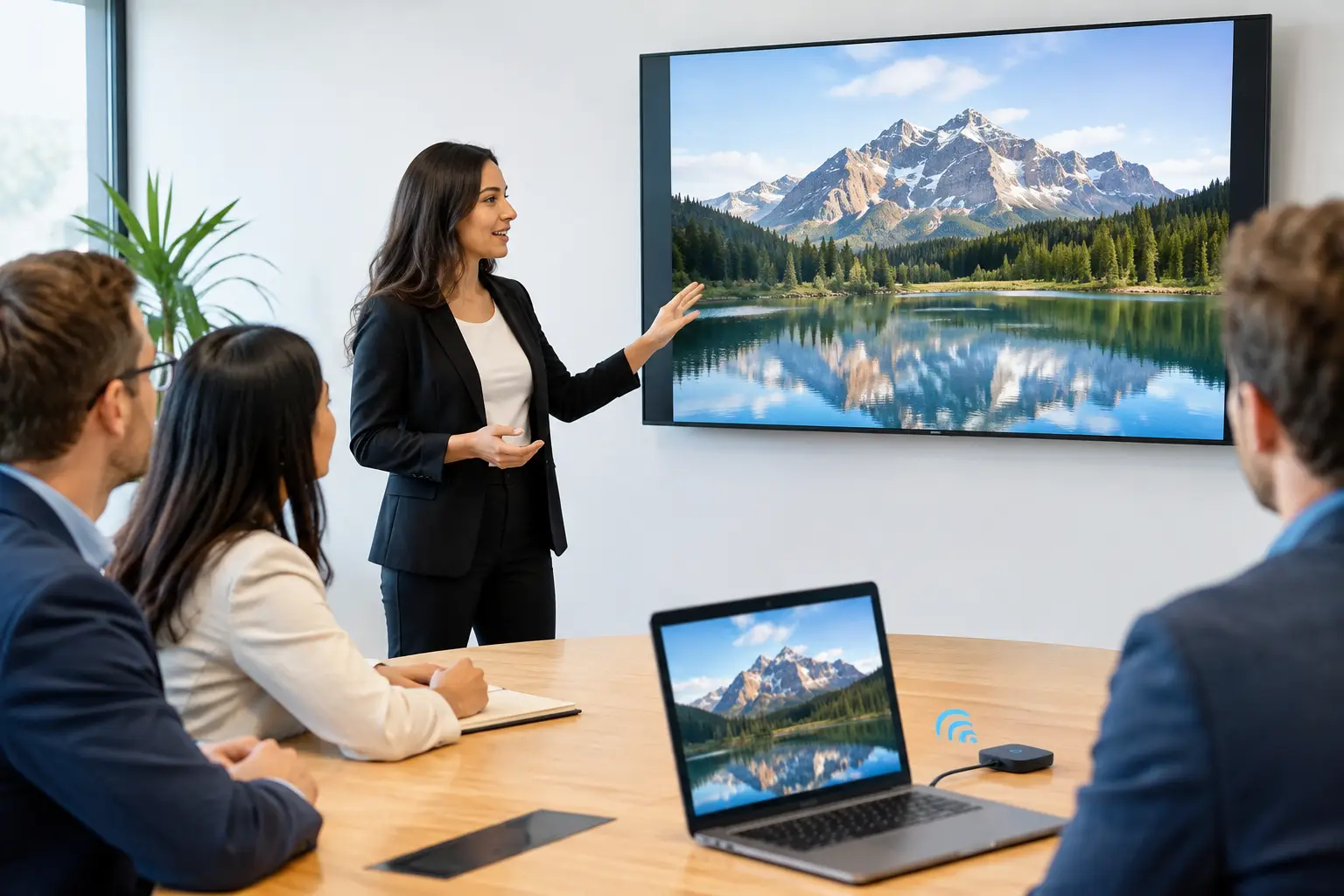
A meeting should not begin with a search for the right cable, an adapter that has gone missing, or a call to IT because a visitor cannot share their screen. To integrate wireless presentation successfully, organisations need to look beyond the ability to cast content to a display. The real objective is a meeting room experience that is quick to start, easy to understand and dependable for every user, whether they are in the room or joining remotely.
Wireless presentation can remove a common point of friction from workplace collaboration. Done poorly, however, it can introduce new problems: insecure guest access, unreliable connections, confusing room controls and inconsistent experiences between sites. The difference lies in how the technology is specified, configured and supported.
Begin with the way people use each room
A small huddle room used for informal team catch-ups has different requirements from a boardroom hosting client presentations or a training suite used by large groups. Before selecting technology, establish who uses the space, which devices they bring, how often remote participants join, and what needs to happen in the first minute of a meeting.
For many organisations, the preferred journey is simple. A user enters the room, wakes the display or video bar, joins a scheduled Teams or Zoom meeting, and shares content from their own laptop without connecting a cable. The system should make that sequence clear without requiring specialist knowledge.
This assessment also exposes practical exceptions. Sales teams may regularly host guests who cannot join the corporate network. Design teams may need to share high-resolution visuals with low latency. Senior leaders may expect a room to work equally well with Windows, macOS and mobile devices. A suitable wireless presentation solution needs to meet those needs without creating an unnecessary support burden.
Define the room standard before buying hardware
Consistency matters more than giving every room a different set of features. When the same room controls, connection method and on-screen prompts appear across the estate, employees build confidence quickly. IT teams also gain a clearer support model, with fewer one-off configurations to maintain.
A workplace technology partner can help translate room types into practical standards. For example, smaller rooms may use a straightforward wireless sharing device connected to a display and video bar, while larger spaces may require dual-screen sharing, annotation capability, control integration and managed switching between in-room and remote content.
How to integrate wireless presentation without friction
The best wireless presentation experience has very little visible technology. Users should be able to identify how to share within seconds, with clear on-screen instructions and a connection process that works across common operating systems.
There are several ways to achieve this. Some solutions use a dedicated button or dongle, which can offer a predictable experience and reduce the need for users to install software. Others allow sharing through an app, a browser or native protocols such as AirPlay and Miracast. In rooms where visitors frequently present, offering more than one connection path can be sensible, provided the choices do not confuse users.
The right approach depends on the organisation’s security policy and user profile. A dedicated button may suit controlled corporate environments where reliability is the priority. App-free browser sharing can be useful for guest-facing spaces, but should be assessed carefully against network rules and the level of access it provides. Native device sharing is convenient, although performance and compatibility can vary between device types and network configurations.
The presentation system should also work alongside the chosen video conferencing platform rather than compete with it. In a hybrid meeting, people in the room need to share content with remote participants as easily as they share it on the local display. That may mean presenting into a Teams or Zoom call from the room system, or allowing a user’s laptop to become the meeting host while using the room camera, microphones and speakers.
Keep room controls purposeful
Touch panels and control interfaces should guide users through a small number of clear choices: start or join a call, share content, adjust volume and end the meeting. Complex source-selection menus and technical labels create hesitation, particularly for occasional users.
Good room design also considers what happens when people finish. A single action should end the call, clear shared content and return the room to a ready state. This protects confidentiality and prevents the next meeting from inheriting an unwanted screen share or open session.
Treat network and security as part of the design
Wireless presentation is a network service as much as an AV feature. It should therefore be planned with the same care given to video conferencing, identity management and guest Wi-Fi. A solution that performs well in a demonstration can struggle in a busy office if bandwidth, wireless coverage and multicast traffic have not been considered.
IT and AV stakeholders should agree the required approach to authentication, network segmentation and guest access early in the project. Corporate users may need to authenticate through existing credentials, while visitors might be given a restricted method of sharing that does not expose internal systems. Encryption in transit, device discovery controls and automatic software updates should all form part of the evaluation.
There is a balance to strike. Security controls that are too restrictive can send users back to cables or personal workarounds. Controls that are too open can create unnecessary risk. The practical answer is usually a clearly defined policy for employee devices, managed devices and guests, reflected in the room experience rather than hidden in a separate process.
Design for hybrid meetings, not just local sharing
A display at the front of the room is no longer the whole meeting experience. Remote colleagues need to see shared content clearly, hear everyone in the room and contribute without being treated as observers. Wireless presentation should support that outcome rather than draw attention away from it.
In larger rooms, consider whether a second display would improve the experience by keeping remote participants visible while content is shared. Camera framing, microphone coverage and loudspeaker placement are equally important. If people cannot hear questions from the far end of the table, a convenient screen-sharing method will not solve the wider collaboration problem.
Content visibility needs attention too. Fine spreadsheets, detailed drawings and small text may be difficult to read from the back of a boardroom or through a video call. A well-designed system gives presenters confidence that what they see on their laptop is being communicated effectively to everyone else.
Plan rollout, training and support from the outset
Even intuitive technology benefits from a considered introduction. Pilot one or two representative spaces before a wider rollout, then test them with real users from different departments. Include frequent presenters, executive assistants, IT support staff and people who may be less confident with meeting room technology. Their feedback will reveal issues that technical testing can miss.
Training should be proportionate to the room. Most users may only need a short demonstration and clear in-room guidance, while local champions and support teams need a deeper understanding of common issues and escalation routes. The aim is not to turn employees into AV specialists. It is to make the correct way of using the room feel obvious.
Ongoing support is especially valuable in multi-site estates, where a minor firmware change, network update or platform update can affect multiple rooms. Remote monitoring, documented standards and a named support route help internal IT teams resolve issues quickly and maintain a consistent experience over time. TecInteractive approaches wireless presentation as part of the wider collaboration environment, combining room design with installation, user adoption and continuing support.
Know when a cable still has a place
Wireless does not need to mean cable-free at all costs. A discreet HDMI or USB-C connection can provide a useful fallback for specialist applications, high-bandwidth content or visitors whose devices cannot meet the wireless sharing requirements. In some environments, it may be the preferred primary method.
The key is to avoid presenting users with an untidy collection of options. A room can offer both wireless and wired sharing, but the hierarchy should be clear: use the simplest method for most meetings, with a dependable alternative when needed. This approach improves confidence without sacrificing flexibility.
A successful wireless presentation installation is measured by what users no longer have to think about. When meetings begin promptly, remote colleagues remain included and support tickets reduce, the technology is doing its job quietly in the background. Start with the meeting experience you want people to have, then build the room, network and support model around it.