
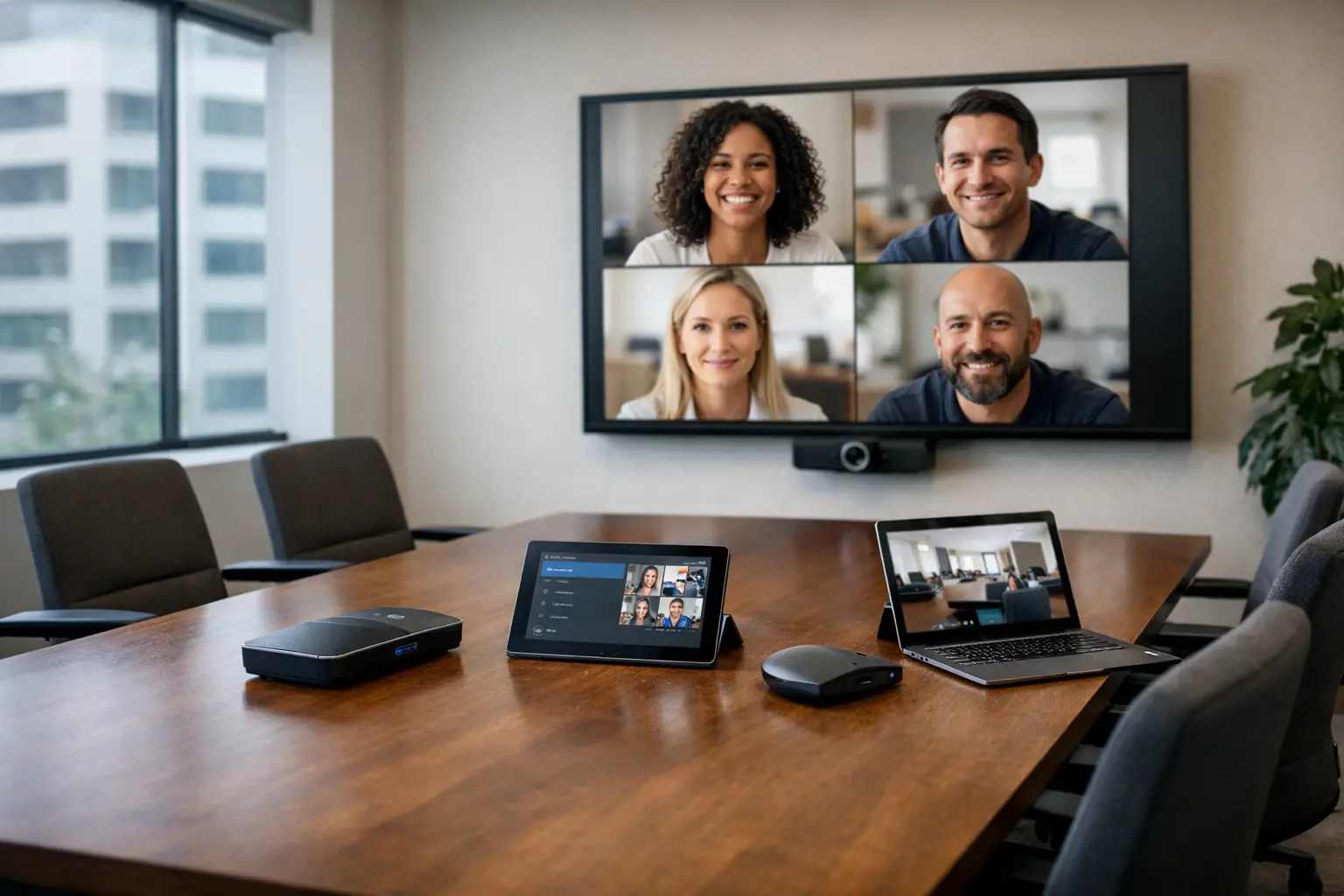
A meeting that starts with five minutes of cable hunting, remote-control guessing and repeated requests to “turn your camera on” is not a technology problem alone. It is a workplace productivity problem. So, what is a teams room system? Put simply, it is a dedicated meeting-room setup designed to run Microsoft Teams meetings reliably, using professional cameras, microphones, speakers, displays and simple room controls.
Unlike a laptop connected to a screen, a Microsoft Teams Room is built into the room itself. Employees can walk in, join a scheduled meeting with one touch and be heard and seen clearly by remote participants. For organisations managing hybrid working across multiple rooms or sites, that consistency is often where the real value lies.
What is a Teams Room system in practice?
A Teams Room system combines Microsoft Teams Rooms software with certified hardware and an installation designed around the room. The software signs into a dedicated room account, displays the day’s meeting schedule and provides a familiar Teams interface on a touch panel or console.
When a meeting begins, the system uses the room’s camera, microphones, speakers and display or displays rather than relying on one attendee’s laptop. Participants can join a scheduled Teams call directly from the room console, or share content from their device when needed.
The result should feel uncomplicated. A user should not need to understand signal routing, select the correct microphone or work out which input the display is using. They should be able to enter the room, press “Join” and focus on the conversation.
A complete system commonly includes a Teams Rooms compute device, a touch controller, one or two displays, a video camera and an integrated audio solution. Larger spaces may also require ceiling microphones, multiple cameras, room speakers, wireless presentation and a dedicated control interface. The right combination depends on the room’s size, layout, acoustics and intended use.
Why dedicated Teams Rooms matter for hybrid meetings
Hybrid meetings are judged by the experience of the person joining remotely. If they cannot hear side conversations, see the people speaking or follow shared content, they are excluded from the decision-making taking place in the room.
A properly designed Teams Room addresses those practical issues. Intelligent cameras can frame participants or track the active speaker. Quality microphones capture speech across the table without forcing people to lean towards a laptop. Dedicated displays can show remote attendees and shared content separately, making the meeting easier to follow for everyone.
There is also an operational benefit. Standardising rooms around a defined Teams Rooms experience reduces variation between spaces. Staff do not have to relearn the technology every time they move from a huddle room to a boardroom, and IT teams spend less time resolving avoidable connection issues.
This does not mean every room needs the same hardware. A four-person focus room and a 20-seat boardroom have very different requirements. They should, however, provide a consistent joining and sharing experience.
The difference between Teams Rooms and Teams on a laptop
Microsoft Teams on a laptop is personal collaboration software. Microsoft Teams Rooms is a shared-room platform. The distinction matters because the equipment, user experience and support model are different.
With a laptop-based meeting, the host brings the camera, microphone, speaker and meeting controls. The meeting quality changes according to where they sit, what device they use and how well they connect it. If that person leaves, the room has no fixed capability.
With a Teams Room, the meeting technology belongs to the space. It is always available, connected to the room display and configured for the acoustics and sightlines of that environment. Calendar integration means scheduled meetings appear automatically, while the room account reserves the space through the organisation’s existing booking process.
Bring-your-own-device, or BYOD, can still have a place. It can be useful for ad hoc meetings, guest users or organisations with a mix of conferencing platforms. However, a BYOD-only approach often creates inconsistent experiences and more pressure on users to make the technology work. Many organisations choose a Teams Room as the default, with BYOD available as a secondary option.
What equipment does a Microsoft Teams Room need?
The essential components are straightforward, but their specification should never be treated as a box-ticking exercise. A small room may use an all-in-one video bar, a touch console and a single display. This can be an effective, cost-conscious solution when participants sit close together and the room is acoustically suitable.
Medium and large rooms usually benefit from a more tailored design. Separate cameras, ceiling or table microphones, speakers, dual displays and integrated room control can create a far better experience. In executive spaces, divisible rooms, training suites or auditoriums, the Teams Rooms platform may need to work alongside presentation systems, wireless sharing, digital signage and more complex audio-visual infrastructure.
Key considerations include:
- Camera coverage: Remote participants need a useful view of everyone in the room, not a distant image of a long table.
- Audio intelligibility: Microphone placement, room acoustics and speaker coverage determine whether speech is clear at both ends of the call.
- Display position: Screens should be large enough and positioned so that participants can see content and remote colleagues comfortably.
- Ease of control: The join button, content sharing and basic room controls must be simple enough for occasional users.
Certified Teams Rooms hardware matters because it is tested to work with the platform. Yet certification alone does not guarantee a successful installation. Poor cabling, unsuitable display placement, echo-prone acoustics or an overcomplicated control experience can undermine excellent equipment.
Windows or Android Teams Rooms: which is right?
Microsoft Teams Rooms systems are available on Windows and Android. Both can provide a strong meeting experience, but they suit different operational requirements.
Android-based systems are often a good fit for standard small and medium meeting rooms. They can be compact, straightforward to deploy and available as integrated appliances from recognised manufacturers. For organisations rolling out a repeatable room type across several sites, this can be an efficient route.
Windows-based systems can be better suited to spaces that need greater flexibility or more sophisticated integration. They are commonly used in larger rooms and environments with advanced audio, video or control requirements. They may also be preferable where an organisation has established Windows management processes and wants a particular hardware configuration.
The decision should be based on room use, support capability, standardisation goals and future requirements rather than a presumption that one platform is always superior. A workplace technology specialist can assess the estate and recommend a sensible mix where appropriate.
Planning a Teams Room deployment
The strongest Teams Room projects start with how people actually meet. Before selecting equipment, it is worth reviewing room sizes, furniture layouts, occupancy patterns, existing cabling, network readiness and the types of meetings each space hosts.
A client-facing boardroom, for example, may need dual displays, high-quality audio and camera framing that presents the organisation professionally. A small project room may simply need a reliable video bar and fast wireless content sharing. Treating both rooms identically can either waste budget or leave users with inadequate technology.
Network and account configuration deserve early attention too. Teams Rooms require appropriate licensing, dedicated resource accounts and reliable connectivity. Security, device management and update policies should be agreed with IT before installation, not discovered during handover.
User adoption is equally important. Even intuitive systems benefit from concise training, clear room guidance and a named route for support. The aim is not to make users technical experts. It is to make the room predictable enough that they rarely need help.
Support is part of the system, not an afterthought
A meeting room is only successful when it works on a busy Tuesday morning, not just when it has passed commissioning. Ongoing monitoring, software updates, responsive troubleshooting and clear ownership protect the investment after installation.
This is particularly relevant for multi-site organisations with a mixture of legacy and newly upgraded spaces. Without a clear support model, small faults can lead employees to avoid rooms they no longer trust, reducing adoption and creating unnecessary workarounds.
TecInteractive approaches Teams Rooms as part of a wider collaboration environment. That means considering the room design, installation quality, user training and ongoing support together, rather than viewing the system as a collection of products.
Choosing the right room experience
The most useful test is simple: can a first-time user enter the room, join a meeting within seconds and give remote colleagues an equal opportunity to contribute? If the answer is yes, the technology is doing its job quietly.
A Teams Room system is not just a way to put Teams on a larger screen. It is a dependable, shared workplace service that helps meetings start properly, keeps hybrid participants involved and gives IT teams a more manageable standard to support.