
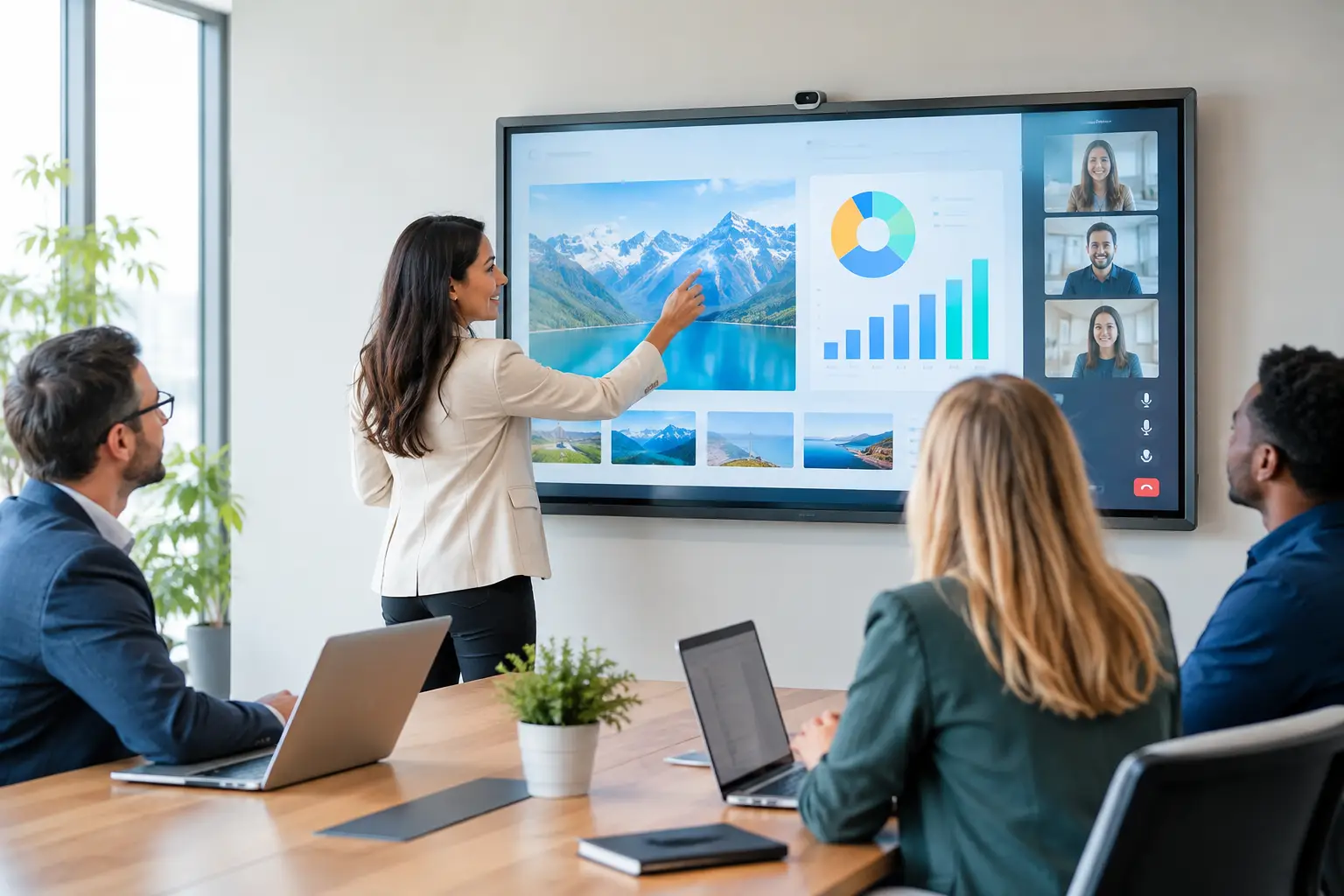
A meeting can lose momentum in the minute it takes to find the right cable, connect a laptop or explain how to share content with remote colleagues. Interactive displays address that familiar friction by bringing presentation, annotation, video collaboration and content sharing into one visible, shared workspace.
For organisations investing in better meeting rooms, the opportunity is not simply to replace a screen. The right display can change how teams review ideas, make decisions and involve people working from other locations. The wrong one, however, can become an expensive digital whiteboard that users avoid because it is difficult to start, confusing to connect or poorly suited to the room.
What interactive displays add to a meeting room
An interactive display is a large-format touchscreen designed for shared use. Unlike a standard commercial display, it allows people to write, move content, mark up documents and control applications directly on screen. Most models also support wireless sharing, wired laptop connection and integrated whiteboarding.
That combination is particularly useful where a meeting involves active discussion rather than one-way presentation. A project team can annotate a drawing, a leadership group can work through a plan together, or a trainer can capture questions as they arise. With the appropriate conferencing platform and room audio, remote participants can see the working content and contribute to the conversation rather than watching from the edge.
The business case is strongest when the display removes steps from a regular workflow. If employees repeatedly gather around a wall-mounted screen to compare documents, review designs, plan delivery or facilitate workshops, interactivity has a clear purpose. If most meetings consist of short status updates and a single presenter, a non-touch display may be the more proportionate choice.
Where interactive displays make the most sense
Meeting rooms are an obvious setting, but not all meeting rooms need the same solution. Small project spaces can benefit from a 55-inch or 65-inch interactive display that supports quick, informal collaboration. Larger boardrooms may require an 86-inch model, sometimes paired with a secondary display so that video participants and shared content remain visible at the same time.
Training rooms are another strong fit. Trainers can annotate content as they present, save material for follow-up and invite delegates to contribute directly. This is often more effective than using a projector and flipchart, particularly when sessions need to be repeated across sites or delivered in a hybrid format.
Interactive displays also have value in operational spaces. Facilities, manufacturing, logistics and service teams may use them for shift handovers, planning boards, performance reviews or safety briefings. In these settings, durability, accessibility and a simple sign-in process matter as much as advanced collaboration features.
Reception areas and customer-facing demonstration suites need a different approach. Touch can be valuable, but public use introduces questions around content control, cleaning, security and accessibility. A locked-down, purpose-built experience is usually more appropriate than giving visitors open access to meeting-room software.
Interactive displays need to fit the room, not just the wall
Screen size is often the first specification discussed, yet it is only one part of a successful design. The display must be comfortable to view from the furthest seat, mounted at a height that works for both seated attendees and people writing on screen, and positioned to avoid reflections from windows or lighting.
Room layout matters too. A display installed high enough for clear sightlines may be difficult for shorter users or wheelchair users to reach. A mobile stand can add flexibility for training rooms and multi-use spaces, but it also requires safe cable management and sufficient floor space. A fixed installation tends to look cleaner and provides a more predictable user experience, although it is less adaptable if the room changes use.
Audio and cameras should be designed alongside the display, not added after the fact. A high-quality touchscreen will not improve hybrid collaboration if remote attendees cannot hear the conversation or cannot see who is speaking. In larger spaces, camera framing, microphone coverage and speaker placement have a direct effect on whether the meeting feels inclusive.
Choose the workflow before the specification
The most useful question is not which brand or panel size to buy. It is what people need to do when they enter the room.
For some organisations, the priority is simple laptop sharing for Microsoft Teams or Zoom meetings. In that case, users may need a clear choice between a room system and bring-your-own-device connection, with instructions that are visible but unobtrusive. For others, digital whiteboarding is central. They may need to save boards to a shared workspace, invite remote contributors and retrieve previous sessions without relying on a particular person’s laptop.
There is also a decision to make between an integrated Android-style operating environment and a display primarily driven by an attached PC or room appliance. Built-in applications can make ad hoc sessions quick to start and reduce dependence on a personal device. A Windows-based room computer may offer tighter alignment with existing applications, management tools and user permissions. Neither option is universally better. The right choice depends on security policy, conferencing standards, the level of IT support available and how consistent the experience needs to be across rooms.
Touch performance deserves practical testing. Teams should try writing naturally, opening common files, sharing from their usual laptops and joining a real video call. Specifications can state the number of simultaneous touch points, but that figure has limited value if pen input feels inaccurate, wireless sharing is unreliable or the interface is unfamiliar to users.
Plan for management, security and support
Interactive technology introduces an endpoint into the workplace estate. That means it needs the same attention as other connected devices: network configuration, software updates, user access, monitoring and a defined support route.
A display used in a shared room should not leave sensitive documents visible for the next group. Automatic session clearing, sensible timeout settings and clear guidance on saving content are essential. If users sign in directly on the panel, organisations should consider whether credentials are stored locally, how accounts are removed and whether single sign-on is appropriate.
Management at scale is equally significant for multi-site organisations. A handful of panels can be checked manually. Dozens of rooms across several offices require central visibility of device status, firmware versions and recurring faults. Standardising room designs where possible makes this easier, while still allowing for genuine differences in room size and use.
Support should account for the entire experience rather than only the panel. A user may report that the display is not working when the actual issue is a loose cable, network authentication, a conferencing account or unfamiliarity with the room controls. Clear ownership prevents internal IT, facilities and external suppliers from passing the problem between them while the meeting room remains unavailable.
Adoption is a design requirement, not an afterthought
Even well-specified interactive displays can be underused when the experience is inconsistent. A room that requires five actions to begin sharing content will encourage employees to revert to a laptop screen or an old meeting habit. The objective should be obvious operation: enter the room, start or join the meeting, share content and collaborate without specialist knowledge.
User training is valuable, but it should be targeted and practical. A ten-minute demonstration for frequent room hosts can prevent a large proportion of support calls. Short, role-specific guidance works well for trainers, executive assistants and teams that run workshops, while a simple in-room prompt can help occasional users connect confidently.
It is also worth collecting feedback after installation. Are people able to hear remote colleagues? Do they use the whiteboard function? Is content legible from the back of the room? Are users choosing to meet elsewhere because the room is harder to operate than expected? These answers reveal whether a configuration change, further training or a different room standard is needed.
Measure value in better meetings
The return on interactive displays is rarely captured by counting touch interactions. More meaningful measures include fewer delayed meeting starts, lower demand for ad hoc IT assistance, better participation from remote attendees and greater use of rooms designed for collaboration.
For workplace and facilities leaders, utilisation data can show whether the room is supporting its intended purpose. For IT teams, reduced incidents and a manageable support model are important signs that the technology is working in practice. Senior decision-makers will often see value in faster decision-making, more effective training and a workplace that gives people a reason to collaborate in person.
TecInteractive approaches these projects as a workplace solution, combining room design, installation, user training and ongoing support so the technology remains useful after launch. The most effective deployment starts with real user behaviour, then builds a dependable room experience around it.
A display should earn its place in the room every working day. When it makes the next conversation easier to start, easier to share and easier to act on, it becomes far more than a large touchscreen.