
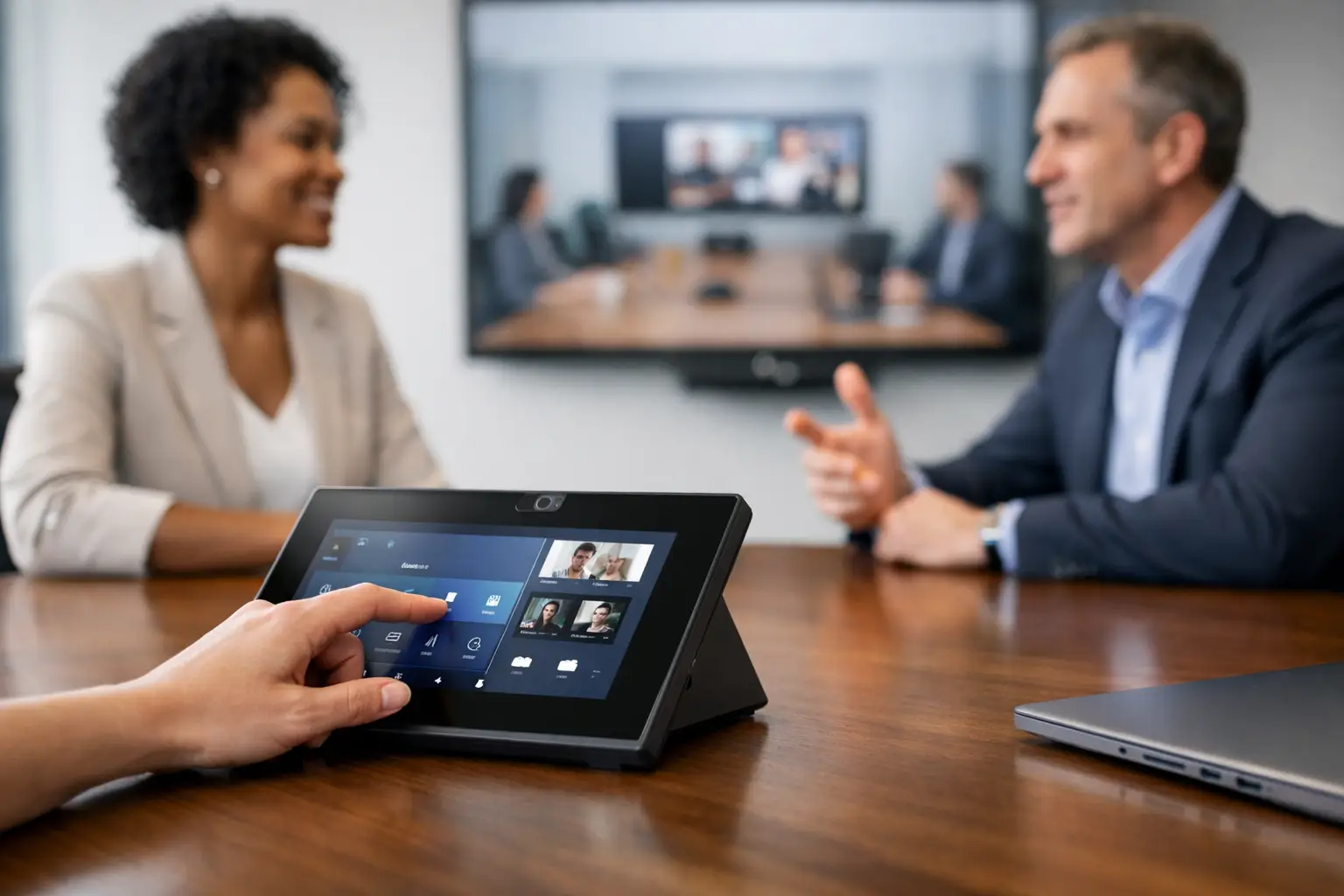
A meeting room can contain excellent displays, cameras and audio equipment, yet still fail at the first touch. If users cannot start a call, share content or adjust a room quickly, the technology becomes a barrier rather than a benefit. Well-designed meeting control panels remove that friction by putting the actions people need in one familiar, dependable place.
For IT, facilities and workplace teams, the panel is not simply an AV accessory. It is the everyday interface between employees and the room. Its design has a direct effect on adoption, support demand, meeting punctuality and confidence in hybrid working.
What meeting control panels are designed to solve
Meeting control panels provide a central way to operate the technology within a meeting space. Depending on the room, this might include starting a video call, selecting a source, sharing a laptop, controlling camera views, adjusting volume, muting microphones, lowering blinds or changing the lighting scene.
The value is not in presenting every possible control. It is in making the common tasks obvious. In a typical hybrid meeting, a user should be able to enter the room, connect or join the scheduled call, share content and be heard clearly without needing a manual or a call to IT.
This matters most when rooms are used by people with different levels of technical confidence. A boardroom may be booked by senior leaders, visiting clients and teams from different departments in the same week. A consistent interface reduces the learning curve for all of them. It also helps organisations standardise the experience across offices, even where room sizes and equipment specifications vary.
The right panel depends on the room
There is no single control panel specification that suits every workplace. A small huddle room with a dedicated video bar needs a different approach from a divisible training space, executive boardroom or auditorium.
In simpler rooms, the conferencing platform’s native touch controller may be all that is required. It can provide a clear route to join meetings, manage participants and share content, with fewer components to support. This can be a sensible choice where standardisation, cost control and straightforward operation are the priority.
Larger or more flexible spaces often need a dedicated touch panel and a programmed control system. These environments may include multiple displays, ceiling microphones, cameras, wireless presentation systems, room lighting and audio zoning. The panel brings those elements together so that users are not moving between remotes, wall switches and separate applications.
The trade-off is clear. More functionality can improve the room experience, but only if it is designed around real use cases. A complicated panel can recreate the very problem it was intended to solve. The right solution is therefore based on the room’s purpose, the users, the support model and the technology that must work together.
Start with the meeting journey, not the equipment list
A useful design conversation begins with what happens before, during and after a meeting. How do users join scheduled calls? Do guests need to present from their own devices? Are teams regularly switching between video platforms? Does the room need to support in-person workshops as well as remote collaboration?
These questions reveal which controls deserve prominence. In many rooms, the main screen should offer only a few choices: join the meeting, start an ad hoc call, share content and get help. Advanced settings can sit behind a secondary page for trained users or support teams.
A practical interface should also handle the moments that cause the most frustration. For example, users may need a clear indication that the room microphone is muted, that wireless sharing is available, or that the camera is framing the room correctly. Good visual feedback prevents uncertainty and avoids the familiar opening minutes of a meeting being spent asking whether everyone can hear.
Principles for effective meeting control panels
The strongest meeting control panels are deliberately restrained. They make common actions quick and protect users from unnecessary decisions.
First, the layout should be consistent. If every room uses different labels, colours or button positions, employees must relearn the system whenever they move between spaces. Standardising the experience across a workplace helps users act with confidence, while still allowing for the extra controls required in specialist rooms.
Second, language should reflect how people speak. Labels such as “Start meeting”, “Share screen” and “Room volume” are easier to understand than product names or technical abbreviations. This is particularly important in multi-site organisations, where visiting colleagues may have no prior experience of the room.
Third, the panel should show system status, not just offer commands. A visible confirmation that the display is on, the correct source is selected or a call is connected reassures users that the room is responding. Equally, a clearly positioned help option gives them a route to assistance before a small issue disrupts the meeting.
Finally, physical placement matters. A touch panel positioned by the entrance may be appropriate for starting the room and selecting an environment. For video calls and presentation control, a panel at the table is usually more useful. In larger spaces, both may be justified, but only where their roles are clear and they do not create conflicting controls.
Integration makes the difference
A control panel is most effective when it sits within a properly integrated meeting room system. The panel needs to communicate reliably with the display, conferencing hardware, cameras, microphones, speakers and any environmental controls. That integration should also account for what happens when equipment loses power, a network connection drops or a meeting runs beyond its scheduled time.
This is where system design has a greater impact than an individual product choice. A room may require a single touch action that turns on displays, wakes the conferencing appliance, selects the correct audio path and prepares the camera. It may also need an automatic shutdown sequence to save energy and return the space to a known state.
For organisations managing a mix of meeting platforms, the design must be especially considered. A Microsoft Teams Room, a Zoom Room and a bring-your-own-device space do not always behave in the same way. Trying to force every room into an identical workflow can create confusion. A better approach is to provide familiar core actions while being clear about the room’s intended method of joining and presenting.
Reliability is a workplace requirement
Users tend to judge a meeting room on whether it works at the moment they need it. A small delay in waking a display or an unclear control path can quickly undermine confidence. This is why dependable network design, tested programming, quality installation and commissioning are all central to a successful outcome.
Supportability should be considered before installation, not after the first fault. Remote monitoring, sensible naming conventions, documented system configuration and clear escalation routes help IT teams resolve issues faster. They also make it easier to manage an estate of rooms rather than treating each space as a separate technical project.
TecInteractive approaches this as an operational question as well as a technical one: how will people use the room, who will support it and what does a successful meeting look like for the organisation? That perspective helps ensure that the control interface is useful long after handover.
Common mistakes to avoid
One common mistake is treating the panel as an add-on at the end of the project. When it is considered too late, the interface can become a collection of controls for equipment that has already been selected, rather than a designed experience for users.
Another is building too many custom functions into every room. Bespoke controls can be valuable in complex spaces, but they need a clear operational reason. If a function is rarely used, it may be better managed by facilities or made available through a protected settings page.
It is also risky to assume that installation alone creates adoption. Brief, practical user training can make a substantial difference, particularly following a workplace move or a large-scale technology refresh. Simple room guides can help, but the best test is whether a first-time user can complete a normal meeting without referring to one.
How to assess whether your rooms need improvement
Start with evidence from the workplace. Look at helpdesk requests, failed meeting reports, room utilisation data and feedback from frequent users. Repeated problems with joining calls, sharing screens, audio levels or camera operation often point to an interface or integration issue rather than user error.
It is worth observing a selection of real meetings too. A room that works well in a demonstration may prove awkward when someone joins late, a guest presents from an unfamiliar laptop or two hybrid participants speak at once. Those situations reveal whether the controls support the actual meeting experience.
The most effective meeting rooms feel unremarkable because the technology does not demand attention. When meeting control panels are designed around the people in the room, teams can focus on decisions, conversations and collaboration rather than the next button they need to press.